


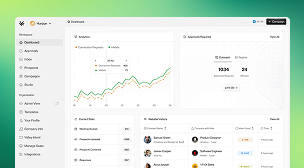
 The Shopify Salesforce connector - Sync Made Easy effortlessly imports your legacy data






Showing all 120 questions.
Getting Started & Overview
10Sync Made Easy is an integration app that connects Shopify storefronts with Salesforce CRM, keeping orders, customers, products, and inventory in sync between the two platforms without manual data entry. It's a brand asset of HIC Global Solutions.
Sync Made Easy is a product of HIC Global Solutions. Their team manages the app's development, releases, and customer support, which can be reached at support@syncmadeasy.com or +1 (262) 310-7818.
It eliminates the manual work of copying Shopify data into Salesforce (and back). Instead of switching between systems or exporting/importing spreadsheets, orders, customers, products, refunds, and inventory sync automatically in real time.
Sync Made Easy (Basic) covers core, one-way syncing of products, customers, and orders on a free plan with limited API hits. Sync Made Easy Pro unlocks the full advanced feature set — multi-store sync, unlimited custom field mapping, refund/tax/shipping/inventory sync, metafields, B2B storefronts, and more — on a paid plan.
Read More (opens in a new tab)The app is distributed through Salesforce AppExchange. Search for "Sync Made Easy" (or "Sync Made Easy Pro" for the advanced edition) and click Get It Now to begin installation.
Get It Now (opens in a new tab)The Basic plan is free but limited to 600 API hits. Sync Made Easy Pro is a paid plan starting at $9.99 per user/month, billed annually, and unlocks unlimited usage and the full advanced feature set.
It connects a Shopify store to a Salesforce org (Salesforce CRM), syncing objects such as Accounts, Contacts, Leads, Orders, Opportunities, and Products between the two.
Yes. Real-time sync ensures that updates made in Shopify or Salesforce — orders, inventory, or customer changes — reflect in both systems without delay or manual effort.
Yes. The Basic plan is free to try directly from AppExchange, and you can also schedule a demo or book a 1:1 call with the team to see Sync Made Easy Pro in action before upgrading.
You can reach the support team at support@syncmadeasy.com or +1 (262) 310-7818, browse the Knowledge Base for step-by-step manuals, or book a call with the implementation team directly from the website.
Read the full article (opens in a new tab)Installation & Configuration
12You need an active Salesforce.org, and the Order Object must be enabled in Salesforce before installing the package. For Sync Made Easy Pro, the main Sync Made Easy app must already be installed with the Order Object enabled.
Read the full article (opens in a new tab)Search "Sync Made Easy" on AppExchange, click Get It Now, log in, choose to install in Production, accept the terms, confirm installation, log in to the target org, keep "Install for All Users" selected, and click Install. You'll get a notification once installation completes.
Read the full article (opens in a new tab)For the Basic app, installing in Production is recommended. For Sync Made Easy Pro, it's recommended to install in a Salesforce Sandbox first for testing, configuration, or exploration before moving to Production.
Before installing the package, go into your Salesforce org's object settings and make sure the standard Order Object is enabled. This is a mandatory prerequisite for Sync Made Easy to create and sync order records.
Step 1 (Setup) registers a Salesforce Site, creates a Domain URL remote site setting, creates an Authenticate remote site setting, and generates a self-signed certificate — all required for Salesforce and Shopify to authenticate with each other.
From the SME Settings setup page, click to register a new Salesforce Site, choose a unique Domain Name (this becomes permanent once registered), accept the Salesforce Site Terms and Conditions, and register it. Then create a new Site, fill
On the Salesforce Configuration page, after initialization, you'll be prompted to generate a self-signed certificate named "Shopify." Click Create Certificate, then Save, and continue to the next step (Shopify Store Setup).
Read the full article (opens in a new tab)During Step 2 (Shopify Store Setup) you'll enter your Shopify Store Name and Access Token. If you don't have a token yet, the Knowledge Base has a dedicated guide, "Steps to Retrieve Shopify Access Token from the Dev Dashboard using Sync Made Easy."
Read the full article (opens in a new tab)Auto Configuration bypasses the manual Object Setup and Field Mapping steps and takes you straight to the Record Type page, using default mappings. It's useful for quickly onboarding a new store. Turn on the toggle and click Save & Next.
Read the full article (opens in a new tab)In Salesforce Setup, open Lightning App Builder, find "SME Pro Features," click View, then Activation, and Save. Next, in App Manager, edit the "HIC Sync Made Easy" app, go to Navigation Items under App Settings, move "SME Pro Features" to Selected Items, and Save.
By design, all Sync Made Easy Pro features ship inactive. You need to open SME Pro Features and switch on the status toggle for each capability (e.g., Refund Sync, Tax Sync) that you want to enable.
Read the full article (opens in a new tab)Installation itself typically takes only a few minutes — you'll see an "Installing and granting access" message and receive a notification once it's complete. The full configuration wizard (site setup, store setup, object/field mapping) takes a bit longer depending on how much you customize.
Read the full article (opens in a new tab)Pricing & Plans
8Sync Made Easy Basic is free, limited to 600 API hits. Sync Made Easy Pro starts at $9.99 per user/month, billed annually, and unlocks the full advanced feature set.
The Basic plan gives you core Shopify–Salesforce sync (products, customers, orders) with a usage cap of 600 API hits, limited custom field mapping, and single-store support.
Pro includes multiple store integration with Salesforce, unlimited custom field mapping for every object, daily email notifications for sync errors, real-time data sync, and all 25 advanced features listed in the Complete List of SME Pro Features — from refund/tax/shipping sync to B2B wholesale storefront support.
Read the full article (opens in a new tab)Pro pricing is shown as $9.99 per user, per month, but it is billed annually.
It's an add-on that gives you dedicated assistance and expert guidance from the Sync Made Easy team to help keep your sync workflows running smoothly, beyond standard support.
Read More (opens in a new tab)Sync Agent is an AI-powered assistant built into Salesforce that lets you monitor syncs, ask questions, and get instant business insights (like sales, orders, and inventory data) without building separate dashboards.
Sync Made Easy's plans are structured around usage tiers (e.g., the 600 API-hit limit on Basic) rather than a published per-record fee. For exact billing details on your use case, it's best to confirm directly with the Sync Made Easy team at support@syncmadeasy.com.
Yes — Sync Made Easy Pro is installed as an add-on/upgrade to the base app once the Order Object and main app are already set up. The Pro User Manual walks through installing and activating Pro on top of your existing setup.
Read the full article (opens in a new tab)Core Sync Features
16Yes, Customer sync is enabled by default (along with Product sync) and cannot be turned off in Object Sync Settings, ensuring your Shopify customers are always reflected in Salesforce.
Yes. During setup you can select a currency, and if multi-currency is enabled in your Salesforce org, all your configured currencies will be available. Values are automatically adjusted during sync to keep financial data consistent across both platforms.
Yes. During the final setup step you can choose to sync legacy records, and the app migrates historical orders, customers, and product records into Salesforce in a structured, organized way.
Yes. Account Duplicate Prevention matches on Shopify Customer Company Name to update existing Salesforce Accounts instead of creating new ones, and Contact Duplicate Prevention does the same based on customer email address.
Yes — the Non-Purchasing Customer's Lead Creation feature creates Salesforce Leads for Shopify customers who haven't completed a purchase, so you can track and nurture potential customers.
Lead Conversion on Customer's First Purchase automatically converts the matching Salesforce Lead into an Account and Contact (or Person Account) once that customer places their first Shopify order.
Yes. During Step 3 (Object Setup) you can choose whether Shopify customers sync to a Person Account or a standard Business Account (Account + Contact) in Salesforce.
Yes, Product Inventory Sync keeps stock quantities accurate by syncing inventory levels from Salesforce to Shopify.
Yes. The app can preserve Shopify orders as Draft status records in Salesforce, and it can also auto-close the related Opportunity as Closed Won once a Shopify draft order is marked Paid.
Yes. Comprehensive Financial Sync for Shopify Orders ensures Shopify order data — totals, taxes, shipping, and other charges — is accurately reflected in Salesforce for paid orders.
Yes. Order Fulfillment Sync lets you fulfill paid orders directly from Salesforce, and the fulfillment details sync back to Shopify automatically.
Yes, Shipping Sync (Shopify → Salesforce) ensures Salesforce order records reflect the shipping information captured in Shopify.
Yes, Tax Sync (Shopify → Salesforce) updates Salesforce orders with tax details from Shopify so your order records stay accurate.
Yes, Checkout Synchronization automatically syncs Shopify checkouts — including abandoned ones — to Salesforce checkouts or Opportunities, so your sales team can follow up on incomplete purchases.
Yes. Shopify orders and checkouts can be synced into Salesforce as Opportunities, and features like "Auto Close Opportunity on Shopify Draft Order Payment" and "Prevent Opportunity Stage Override from Shopify" give you control over how those Opportunity stages behave.
Yes. The app runs real-time automated sync out of the box, and Pro also offers an Initiate Batch Sync feature so you can manually sync Shopify data with Salesforce for a specific date range whenever needed.
Pro & Advanced Features
16It synchronizes data from Salesforce back to Shopify based on your configured field and object mappings, enabling true two-way sync rather than a one-directional feed.
Whenever a refund is initiated in Shopify, Sync Made Easy automatically creates a matching refund record in Salesforce — including refund lines, transaction details, and order adjustments — under the related Order in the Related section.
Read the full article (opens in a new tab)In Salesforce, open the HIC Sync Made Easy app, go to SME Pro Features, and switch on the "Refund Sync (Shopify → Salesforce)" toggle. Once enabled, refunds issued in Shopify will automatically sync to the corresponding Salesforce order.
Read the full article (opens in a new tab)Yes. Order Refund Sync (Salesforce → Shopify) automatically pushes refund information entered on a Salesforce order to the corresponding Shopify order.
Yes, Order Cancel Sync (Salesforce → Shopify) automatically cancels the matching Shopify order when a paid order is canceled in Salesforce.
Yes, in both directions. Product Images Sync (Shopify → Salesforce) keeps product listings in Salesforce visually accurate, and Product Images Sync (Salesforce → Shopify) ensures both platforms display the same images.
Read the full article (opens in a new tab)It lets you map and sync any Shopify or Salesforce metafield value to the correct object and data type on the other platform, so custom data fields stay aligned. Note: this feature is available with a one-time implementation charge.
Read the full article (opens in a new tab)Yes, UTM Parameter Sync ensures UTM tracking parameters captured in Shopify are reflected on the corresponding Salesforce Orders and Opportunities, helping with marketing attribution.
Read the full article (opens in a new tab)Yes. The Wholesale Business Storefront (B2B Shopify) feature syncs details such as Company, Customer, Location, and location catalogs from a Shopify B2B storefront, with customization support available.
It groups customers by their email domain — mapping the company as a Salesforce Account, the individual customer as a Contact, and their orders under both the Account and Contact — useful for B2B-style customer hierarchies.
Read the full article (opens in a new tab)Yes, Selective Date-Duration Data Sync lets you sync Shopify's historical data for a specified date range rather than pulling in your entire order history.
It lets you manually trigger a sync of Shopify data into Salesforce for a specific period, useful for backfilling or reconciling legacy records with what's currently in Salesforce.
Read the full article (opens in a new tab)Yes, Google Analytics sync brings performance metrics and sales data together between Shopify and Salesforce, so you can view marketing and sales performance in one place.
Yes, it integrates with tools like Mailchimp, allowing you to sync newsletter subscribers and support marketing automation directly from your Shopify and Salesforce ecosystems.
Yes. Dynamic Reports & Dashboard tracks Shopify data directly inside Salesforce dashboards, giving you a unified view of orders, customers, and performance trends.
The AI Agent lets you ask questions in plain language and get instant answers, dashboards, and performance data — like recent sales, order status, or inventory — without manually building reports or switching between Shopify and Salesforce.
Multi-Store Management
8Yes. The Multi-store sync functionality lets you connect and manage more than one Shopify store from a single Salesforce org through the All-in-One Shopify Store Manager panel.
Read the full article (opens in a new tab)On the Shopify Store Setup page, click "Having More than One Store" and confirm. This opens the multi-store control panel where you can add, edit, or remove connected stores.
From the multi-store control panel, click "Add New Store," enter the new store's name and access token, click Check Credentials, then Save & Next to complete the addition.
Open "Having more than one store," confirm the prompt, then click the Edit icon next to the store you want to change in the All-in-One Shopify Store Manager modal. Update the fields and click Save & Next.
In the All-in-One Shopify Store Manager modal, click the Trash icon next to the store you want to delete.
Multi-store setups are managed per connected store within the All-in-One Store Manager. If you need a dedicated field identifying source store on every record, that's a configuration/custom-mapping question best confirmed with the support team for your specific setup.
Multiple store integration with Salesforce is called out specifically as a Sync Made Easy Pro capability on the pricing page, alongside unlimited field mapping and daily error notifications.
Field mapping is configured per object during setup, and Sync Made Easy Pro offers unlimited custom field mapping for every object — giving you the flexibility to tailor mappings as you add or edit stores.
Field Mapping & Customization
7Yes. On the Field Mapping page, turn off the default-mapping toggle (for all objects or just one) to customize which Shopify fields map to which Salesforce fields.
Open the relevant object in Field Mapping, scroll to "Add New Row," and click it to map an additional Shopify field to a Salesforce field.
Yes. Enable the "Sync all Contacts and Orders in a single Account" toggle and specify the account name you want everything synced under.
Yes. In the Opportunity Stage & Expected Close Date Management section of Field Mapping, enable the toggle, set the number of days until close, and choose a default stage name.
Read the full article (opens in a new tab)Field Mapping supports mapping Shopify fields to Salesforce fields with custom logic per object; for setting a static default value on a specific field, it's best to confirm the exact configuration with support for your object and field type.
On the Basic plan, custom field mapping is limited. Sync Made Easy Pro removes that cap with Unlimited Custom Field Mapping for every object.
Whichever Record Type you select on the Record Type step of setup — the app creates Orders, Opportunities, and other records using that selected Record Type.
Orders, Refunds & Finance
12Please make sure you’ve upgraded to the Pro version of Sync Made Easy to access the Shopify Order Total feature, as it is not available in the Basic version. For any further assistance, please contact our support team at support@syncmadeasy.com.
Refund Sync captures the exact refunded amount, refund lines, and transaction details from Shopify — including partial refunds — and reflects them accurately under the related Salesforce order record.
Open the synced Order record, go to its Related section to find the refund record, then open that refund and check its own Related section for refund lines, transaction details, and order adjustments.
Yes, Order Cancel Sync (Salesforce → Shopify) automatically cancels the corresponding Shopify order when a paid Salesforce order is canceled.
Yes, Product Inventory Sync keeps stock levels consistent by syncing inventory quantities from Salesforce to Shopify.
Tax Sync (Shopify → Salesforce) writes Shopify's tax line details onto the corresponding Salesforce order record, so tax information is visible directly on the order.
Yes, Multi-Currency support automatically adjusts values during sync, so orders and financial data stay accurate and consistent whether they were placed in one currency or several.
The free Basic plan is capped at 600 API hits. Sync Made Easy Pro is built to handle large volumes, syncing thousands of records while maintaining performance and reliability.
Real-time sync is designed to reflect changes instantly. If you specifically need to control or throttle sync frequency (e.g., scheduled vs. near real-time), Sync Made Easy Pro allows you to configure sync frequency to suit your workflow.
Customer-object sync supports Person Accounts, and matching typically relies on the customer's email address. For guest orders specifically, it's best to confirm the exact matching behavior with support, since it can depend on whether Shopify captures an email on the guest order.
Yes — draft orders can be preserved in Salesforce and tied to Opportunity stage automation (e.g., auto-closing an Opportunity when a draft order is paid), which supports using Shopify draft orders within a Salesforce sales pipeline.
Sync Made Easy publishes a dedicated Refund & Cancellation Policy covering its own subscription billing; check that page for the specific terms that apply to your plan.
Security & Compliance
10Sync Made Easy is built with enterprise-grade security, encrypted data transfers, and trusted compliance standards, so every sync between Shopify and Salesforce is protected in transit.
During setup, Sync Made Easy creates Salesforce remote site settings and a self-signed certificate to establish a secure, authenticated connection between your Salesforce org and Shopify store.
The self-signed certificate (named "Shopify" during setup) is used to secure the authenticated connection Sync Made Easy establishes between Salesforce and your Shopify store.
Sync Made Easy is built on Salesforce and Shopify's supported integration mechanisms (remote site settings, sites, and access tokens). For specifics on REST API usage and PCI-related data handling, contact support@syncmadeasy.com — this is addressed as part of the Support FAQs.
Your Shopify Store Access Token is entered directly into the app's setup page inside your own Salesforce org and used to authenticate API calls to your store; it isn't publicly exposed.
This typically means the remote site settings or certificate need to be re-checked. Revisit the SME Settings setup page, use Check Status, and confirm the Authenticate and Domain remote site settings match your current certificate — or contact support for help resolving it.
Salesforce installation defaults to "Install for All Users," and Sync Made Easy Pro features require the appropriate permission set to be assigned to the user initiating sync — this is especially important after security-related updates like the May 2026 release.
Yes. The May Update (v1.372) included improved security and stability for the app's Connected App configuration, in line with new Salesforce security policies. No action was required for most users, though some may need to reassign the sync-user permission set.
The Privacy Policy, Anti-Spam Policy, and Refund & Cancellation Policy are all linked from the footer of the Sync Made Easy website and support portal.
Troubleshooting & Common Errors
15This usually happens when the customer's first or last name is not available in Shopify. Salesforce requires a Last Name for Contact records, so REQ is used when the required name information is missing. Follow this step guide to check the Shopify customer details and identify the missing information.
You can check the synchronization activity from the Shopify Log in Sync Made Easy. The log lets you review synced products, orders, variants, and other synchronization records, and the available logs can also be downloaded as a CSV file. For complete steps, you can Follow this guide.
If a batch sync is stuck, you can terminate it using the Stop Sync option. Once the batch is terminated, you will be redirected to the Shopify Store Setup page.Here’s the troubleshooting guide.
This usually means the Salesforce Site created during setup isn't marked Active, or its Public Access Settings weren't fully configured (e.g., the Apex class access step was skipped). Revisit Step 1 of setup and confirm the site is Active and the AuthenticateAllApexClass is enabled.
This means the missing fields aren't part of the current field mapping. Go to Field Mapping, turn off default mapping for the relevant object, and use "Add New Row" to map the additional Shopify fields you need.
This typically points to an Object Setup or Person/Business Account configuration issue. Confirm whether you selected Person Account or Business Account in Step 3, since that choice determines whether Contact records are created alongside Accounts.
Check the Object Setup step: if the toggle for creating Orders/Opportunities from Paid Orders is off, or the "Preserve Shopify Orders as Drafts" feature is enabled unintentionally, orders will stay in Draft. Review and adjust these toggles in Object Setup.
Order Number is mapped to Salesforce's built-in Auto-Number field by default. Switching to a custom text field mapping can affect this default binding — this specific scenario is addressed in the Support FAQs; reach out to support for the recommended mapping approach.
This error generally means the Order Object isn't enabled in your Salesforce org. Enable the Order Object (a mandatory prerequisite) before installing or reconfiguring Sync Made Easy.
This is a data-relationship error during sync, usually caused by a referenced record (like an Account or Product) not existing yet in Salesforce when a related record tries to sync. Contact support with the specific log entry for a precise diagnosis.
Webhook failures are typically tied to remote site settings, certificate, or connectivity issues between Shopify and Salesforce. Use Check Status on the SME Settings page to verify your configuration, or contact support if the issue persists.
This message means AppExchange doesn't detect an org connected to your Trailhead/developer account. You'll typically need to connect or verify your developer org through Trailhead before AppExchange will let you install packages to it.
Large historical data volumes or high order counts can slow initial syncs. Sync Made Easy Pro is designed to handle high-volume sync efficiently; using Selective Date-Duration Data Sync to limit historical imports, or Initiate Batch Sync for controlled backfills, can help.
The January Update (v1.367) specifically addressed Remote Site Settings issues, version compatibility problems, and post-installation script exceptions — make sure you're on the latest version, and re-run Check Status on the setup page if issues persist.
Sync Made Easy has a dedicated FAQ for disabling the integration in a Sandbox environment. Since this is an environment-specific configuration, follow this support guide for the exact steps rather than changing the Production setup.
No questions match your search. Try a different keyword, or email us at support@syncmadeasy.com.